
JustCall
Connect a JustCall workspace. Its texts, calls, and voicemail arrive in your CommSync inbox.

JustCall
Link a JustCall workspace, then choose the numbers to import into CommSync.
JustCall is a cloud phone platform. When you connect it, CommSync reads the texts, the calls, and the voicemail on the numbers you pick, and it sends your replies through JustCall.
Phone providers explains what every connection does. This page adds what JustCall does differently.
Before you start
- A JustCall login that can open the Developers page.
Good to know
- CommSync imports only the numbers you pick. It does not sync every number of your JustCall workspace.
- CommSync encrypts the API secret at rest (AES-256-GCM).
Connect JustCall
Open Settings → Phone numbers and pick JustCall.
Use your API key and secret
Open the JustCall Developers page
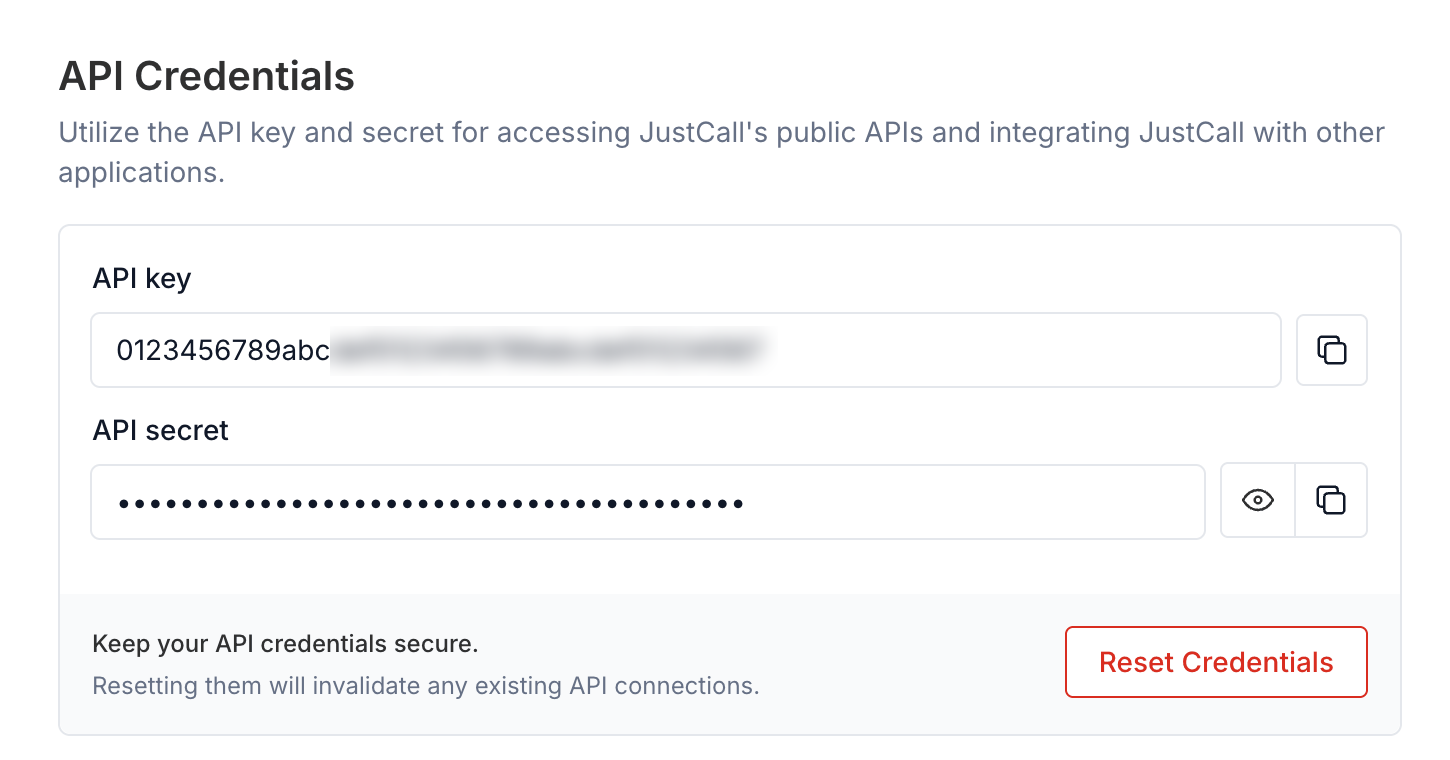
In JustCall, go to Settings → Developers → API Keys.
Copy the API key and the API secret
They are on the API Credentials card.
Keep both values ready
The next page asks for them. After that, you pick which of your numbers come into CommSync.
Connect the account
Click I have my API key and secret. Enter a name for the account in CommSync, the API key, and the API secret. CommSync checks them with JustCall and lists the numbers on the account.
Finish in CommSync
Pick the lines
Pick the numbers that CommSync manages. Each number shows its state: available, already imported into your workspace, or locked to another workspace. You can change the selection later with Manage numbers in the account menu.
Paste the webhook address in JustCall
JustCall delivers inbound SMS events to CommSync via a webhook. The same endpoint also receives outbound status callbacks so CommSync can update delivery state.
- In the JustCall portal, go to
Webhooks → Add webhook - Set the URL to your CommSync webhook address
- Set the method to
POSTand the format toJSON - Select the events. Select
text.receivedto start; add status events as needed. - Save
Choose how much history to import
Pick a history window, or live sync only. Decide later keeps the choice open, and Choose history in the account menu opens it again.
How the webhook works
Webhook URL:
https://your-domain.com/api/webhooks/justcallIf JustCall retries a delivery, CommSync recognizes the duplicate message ID from the provider and skips it safely.
No shared-secret validation
JustCall does not sign its webhook payloads. Restrict access at the network level: use an IP allowlist for JustCall’s egress ranges (check JustCall’s documentation for the current list). Also make sure the endpoint is only reachable over HTTPS in production.
What syncs
- CallsCalls
- VoicemailVoicemail transcripts
- PicturesPictures, up to 10
- Group textsNo group replies
- Delivery receiptsNo delivery receipts
- History importImports past texts
Contact names from JustCall
If you have named a contact in JustCall’s address book, CommSync picks that name up automatically as their messages sync. It then uses that name for the conversation title.
This is fill-only. The JustCall name never overwrites a name you have already set in CommSync. That is true whether you set the name when you rename the number, or when you link the number to a contact. Names appear as new messages arrive. Conversations with no new activity keep the bare number until the contact texts again, or until support runs a one-time import of your JustCall address book.
Calls and voicemail
- Calls. JustCall reports each finished call, and CommSync shows it as a row in the conversation.
- Voicemail. JustCall sends its own transcript. CommSync waits up to 55 minutes for it, then writes one with AI.
- Call transcripts. JustCall shares a transcript of a recorded call.
- Call summaries. JustCall shares an AI summary of a call, with the customer sentiment.
- Recordings. A call row carries its recording, when JustCall kept one.
Nothing to configure. JustCall hosts its own voicemail, and CommSync reads the call history — with recordings and transcriptions — through the JustCall API. New calls arrive through the same webhook and 60-second sync that deliver your texts.
JustCall transcribes calls and voicemail itself (JustCall AI). CommSync reads the transcript, the summary, and the sentiment from the JustCall API — no AI spend.
JustCall produces the transcript a few minutes after the call ends. CommSync checks back on its own and adds the transcript to the call row when it is ready. An open thread updates live — no refresh needed.
A JustCall call row also names the teammate on the call.
See calls and voicemail for how a call reads in the inbox.
Limits
- Pictures you send: up to 10 per text, 5 MB in total.
- Group replies: none. A group conversation says “Reply to this group in JustCall.” in place of the reply box.
When something needs your attention
The account card in Settings → Phone numbers shows the state of the account, and each error names the one thing to do.
| What you see | What it means | What to do |
|---|---|---|
| History choice waits | You picked Decide later on the history step. | Pick Choose history in the account menu. |
Manage numbers in the account menu also removes a number.
On a JustCall account, the Access control on the account header covers every number on that account.