
Turn on IMAP in Outlook.com
A personal Outlook.com, Hotmail, or Live mailbox has IMAP off by default. Turn it on so that CommSync can sync the mailbox.
CommSync syncs your mailbox over IMAP. Outlook.com turns IMAP off by default for personal accounts: Outlook.com, Hotmail, Live, and MSN addresses. When IMAP is off, Sign in with Microsoft stops with "IMAP is off for this mailbox". Turn IMAP on once, then connect the mailbox again.
The setting is on the Outlook.com website. It is not in the Outlook app for Windows, Mac, or iPhone.
Turn on IMAP
Open the IMAP settings
Open Forwarding and IMAP in Outlook.com in a web browser. Sign in with the account of the mailbox that you want to connect. The link opens Settings, then Mail, then Forwarding and IMAP.
Turn on IMAP
Under POP and IMAP, turn on Let devices and apps use IMAP.
Save
Click Save.
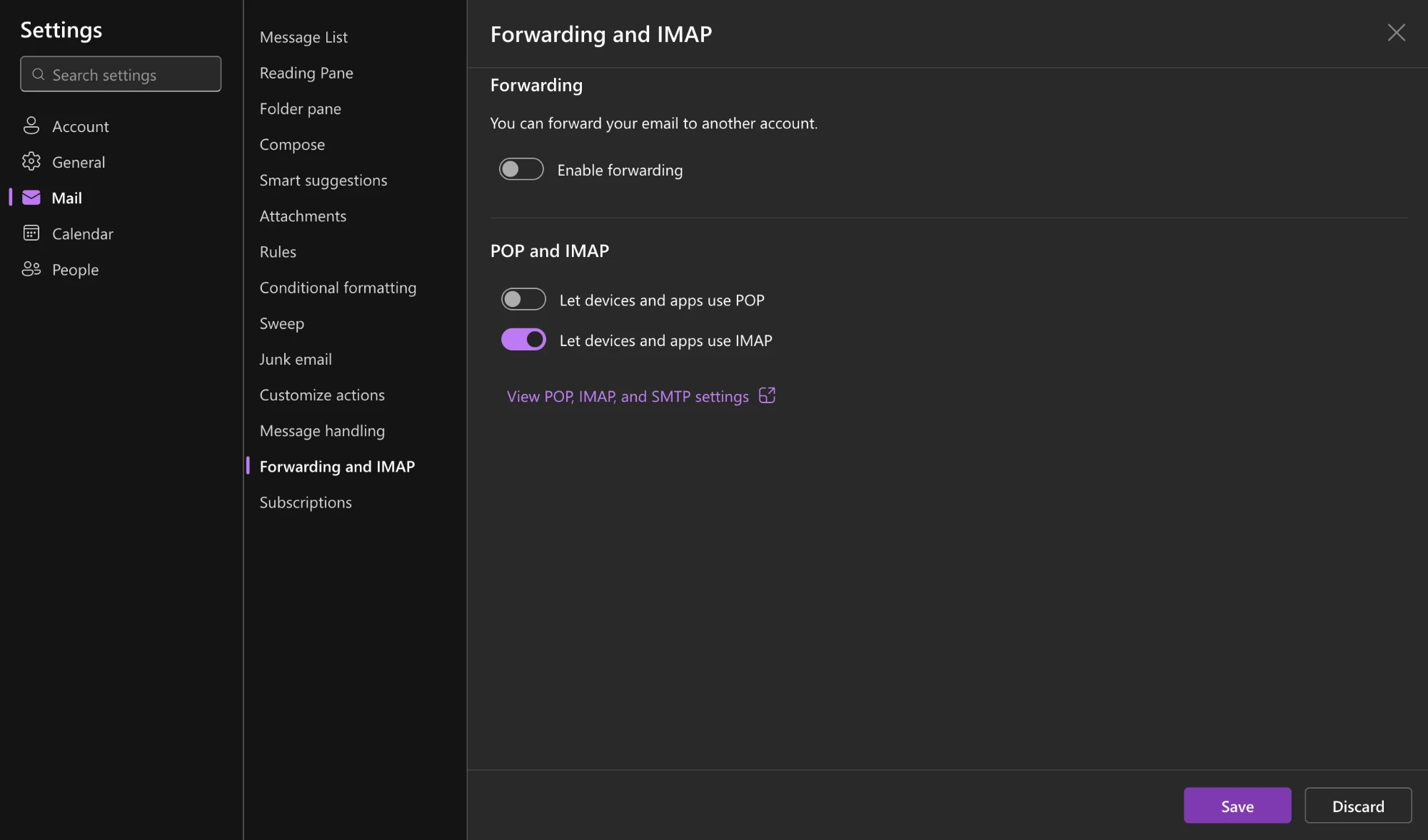
Microsoft can move this setting. If the link does not open it, go to
outlook.live.com and click the gear icon
(Settings) at the top right. Then type IMAP in the settings search box.
Connect the mailbox again
Go back to CommSync. On the screen that says IMAP is off, click Try again.
If you closed that screen, open Settings → Email accounts, click Add email
account, and pick Microsoft again.
The change can take a few minutes to reach the mail server. If CommSync still says that IMAP is off, wait five minutes and try again.
A work or school account
The Outlook.com setting is for personal accounts only. A Microsoft 365 work or school account uses the IMAP setting of its organization. Only an IT admin can change it. Send your admin the Microsoft 365 admin guide.